
Getting started.
Add your first note, make it yours, and connect an agent when you need one.
What is Duonote?
Duonote is a Google Chrome extension for notes on webpages. Keep a checklist beside a task, leave feedback on a design, or save research alongside its source. Notes are stored in your Chrome profile. You can write them yourself or connect an AI agent to read, create and update them.
Manual notes work offline and do not need an account or an AI agent. Agent access is optional and requires your approval in Chrome.
How do I add a note to a webpage?
Open notes stay with their tab as you browse. Each note remains saved at its original page URL and returns when you revisit that URL in the same Chrome profile.
With Duonote installed, open an ordinary webpage in desktop Chrome.
Right-click the page and choose New note, or open Duonote from the Chrome toolbar and choose New note.
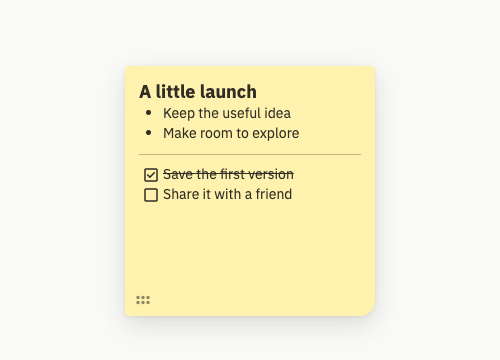
Click the note to write. Drag its handle to move it, or drag an edge or corner to resize it. Your changes save automatically.
What can I change in a note?
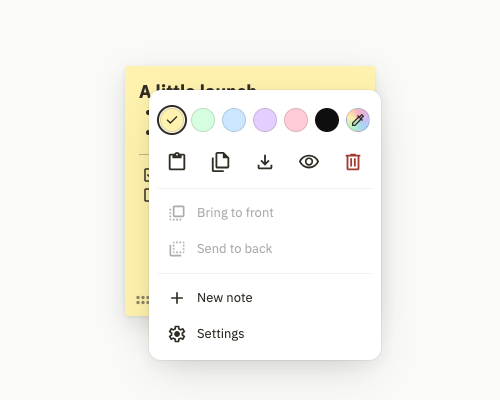
Open a note’s menu to choose a color or a custom color. Drag the dotted handle to move the note, or drag an edge or corner to resize it.
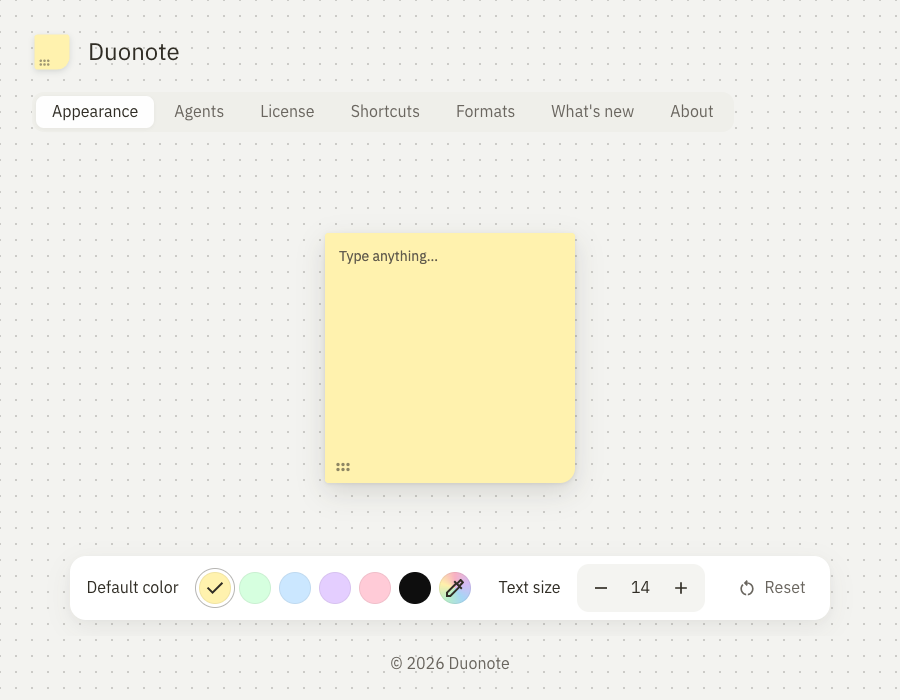
Settings → Appearance controls the default color for new notes and the text size for all notes, including notes you have already created. Select text in a note to reveal its formatting toolbar.
How does Duonote work with Codex?
Codex can read, create and update Duonote after you connect it and approve access. The local connection uses an MCP helper on the same computer; it does not sync your notes to another device.
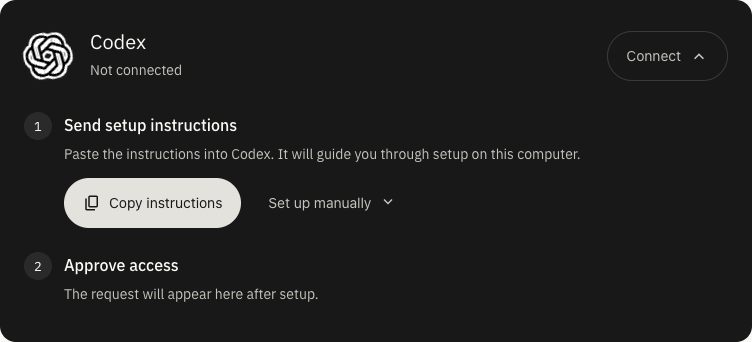
Open Duonote Settings → Agents and choose Codex.
Use Copy instructions and send those instructions to Codex. Follow the setup shown by your installed version of Duonote.
Review the connection request in Chrome and approve the access you want to grant. The agent can then read the Duonote usage guide and confirm the connection.
Try asking: “Create a Duonote checklist on this page with the checkout cases we still need to test.”
Duonote gives the connected agent access to permitted note data. It is not a general browser-control tool and does not, by itself, give the agent the webpage’s contents or your browsing history.
How does Duonote work with Claude?
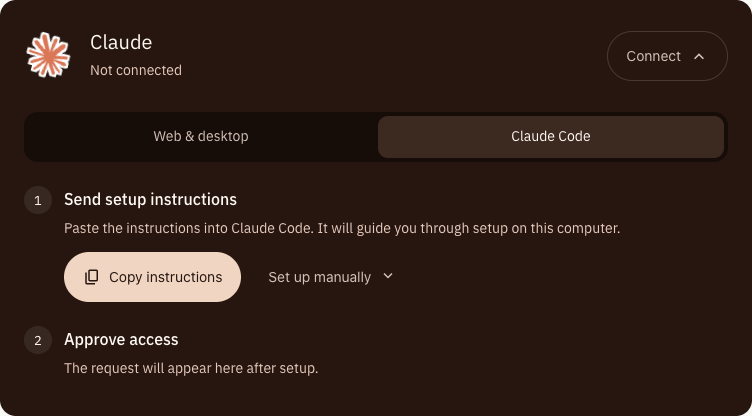
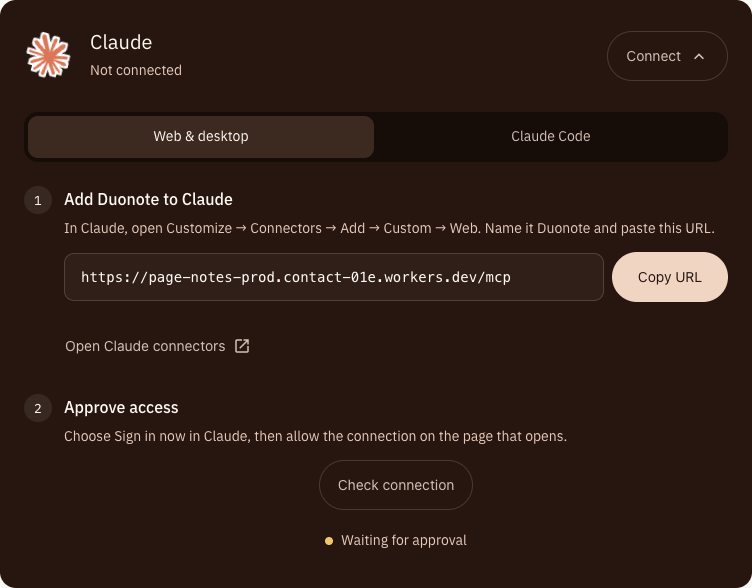
Open Settings → Agents and choose Claude. The connection screen distinguishes Claude Code from Web & desktop; follow the option for the Claude app you use.
Claude Code uses the local helper on your computer. Copy its setup instructions, send them to Claude Code, then review and approve the connection in Chrome.
Claude web and desktop use a separate hosted connection where configured. Follow that connection’s steps in Settings; a local Claude Code connection does not automatically connect Claude web or desktop.
Try asking: “Read the Duonote checklist for this page and add a note with the questions we still need to resolve.”
AI-provider accounts, subscriptions and usage are separate from a Duonote license. Connecting an agent does not give every AI app access to your notes.
Where are my notes stored?
Notes are stored locally in your Chrome profile. Duonote does not provide cloud sync or a cross-device backup. Download a note as Markdown when you want a separate copy.
An approved agent can receive the note content and page URLs it requests. A local connection and a hosted connection have different data paths. Notes displayed on a webpage are part of that page, so avoid putting secrets in them.
How much does Duonote cost?
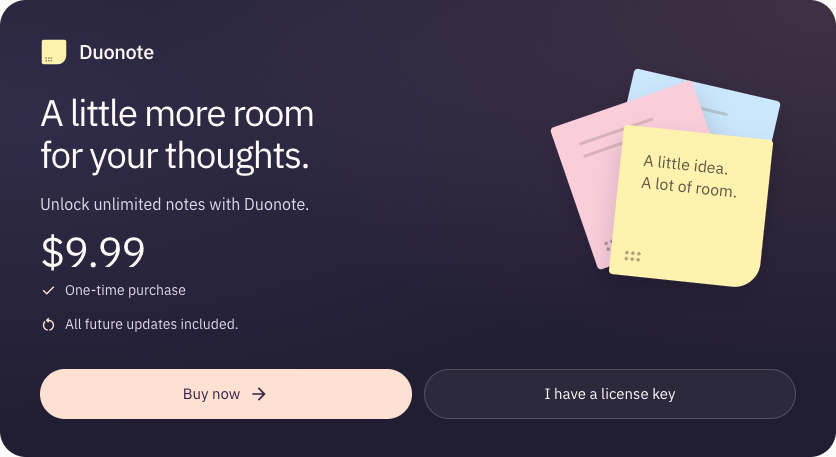
You can keep one saved note for free per Chrome profile. A Duonote license costs $9.99 USD once, removes the note limit and includes future updates. It is not a subscription. Hidden notes count toward the free limit.
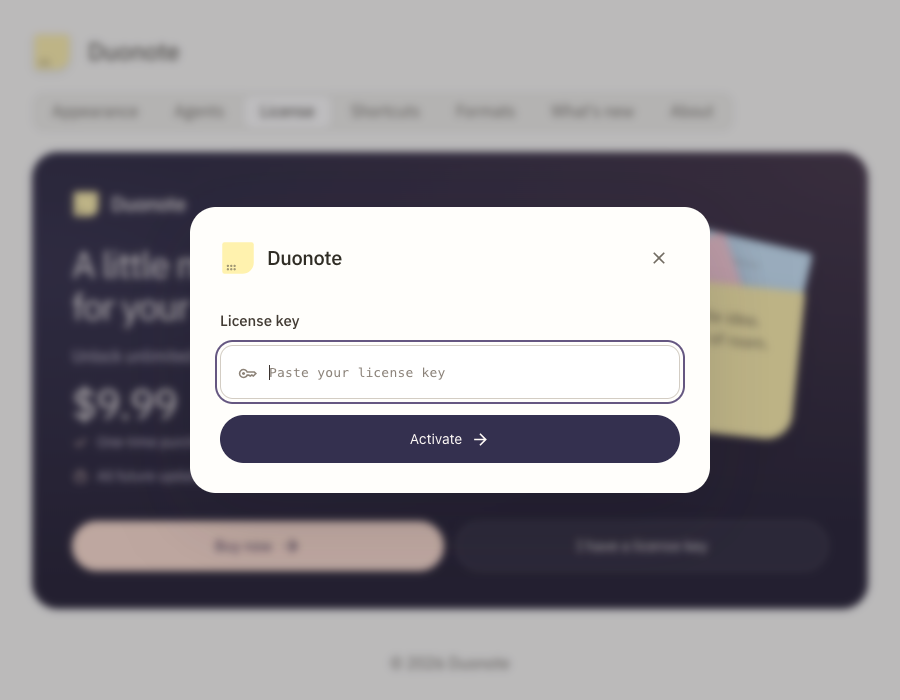
After purchase, open Settings → License and choose I have a license key. Paste your key and choose Activate. Initial activation needs an internet connection. An activated license keeps working offline.
Which browsers and pages can I use?
Duonote is built for desktop Google Chrome 120 or later. Use it on ordinary HTTP and HTTPS webpages where the extension has permission to run.
Chrome restricts extensions on its internal pages and the Chrome Web Store. Duonote cannot place notes on those protected pages.