Text formatting.
Turn a note into a clear heading, a useful list or a simple checklist.
Text styles
Select text to reveal the floating toolbar. Combine bold, italic, underline and strikethrough, or select an active style again to turn it off. The toolbar also includes Heading 1 and Heading 2.
Use Cmd / Ctrl + B, I or U for bold, italic or underline, and Cmd / Ctrl + Shift + X for strikethrough. Cmd / Ctrl + Z undoes an edit.
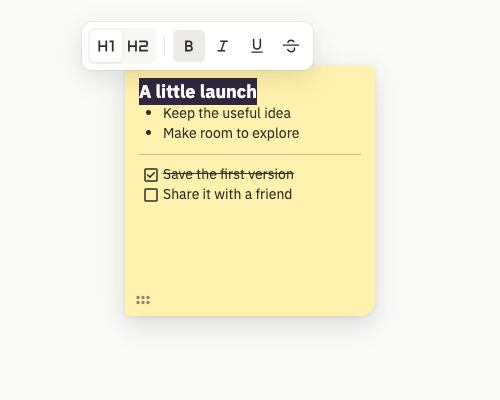
Formatting uses the toolbar, keyboard shortcuts and the typed markers below. Typing **bold**, *italic*, backticks or Markdown links does not convert them automatically. There is no Clear formatting command: toggle the individual styles off instead.
Headings
Start a fresh line outside a list with a heading marker, then press Space. You can also select text and choose Heading 1 or Heading 2 in the toolbar.
| Start with | Then press | Creates |
|---|---|---|
# | Space | Heading 1 |
## | Space | Heading 2 |
Choose the active heading again to return to a paragraph. Applying a heading to a list selection takes that selection out of the list. Heading 1 and Heading 2 are supported; further heading levels are not.
Lists and checklists
Type a marker at the start of a line, then press Space. Press Enter to continue the list.
| Start with | Then press | Creates |
|---|---|---|
- | Space | Bullet list |
1. | Space | Numbered list |
[] or [ ] | Space | Checklist |
Press Enter to add the next item. New checklist items start unchecked. Click a checkbox to mark it complete, or focus the checkbox and press Space.
On an empty list item, Enter leaves the current nesting level or exits the list. Backspace on an empty item also moves it back toward plain text. Shift + Enter creates a line break within the same item.
Nested and mixed lists
Use Tab to nest an item under the preceding item and Shift + Tab to move it back. Bullet lists, numbered lists and checklists support eight nested levels beneath the top level. The first item cannot be indented without a preceding item.
You can mix list types—for example, a checklist inside a numbered step. Nested numbering and list structure are kept when you save and return to the note.
Dividers
Type three hyphens on their own line outside a list, then press Enter or Space.
| Start with | Then press | Creates |
|---|---|---|
--- | Enter / Space | Horizontal divider |
Links
Web addresses beginning with http://, https:// or www. are recognized automatically. Finish editing to see them as clickable links. While editing, use Cmd + click on macOS or Ctrl + click on Windows or Linux to open one.
Links open in a new tab. Pasted or dropped text is inserted as plain text; you can format it afterwards.
Color, size and position
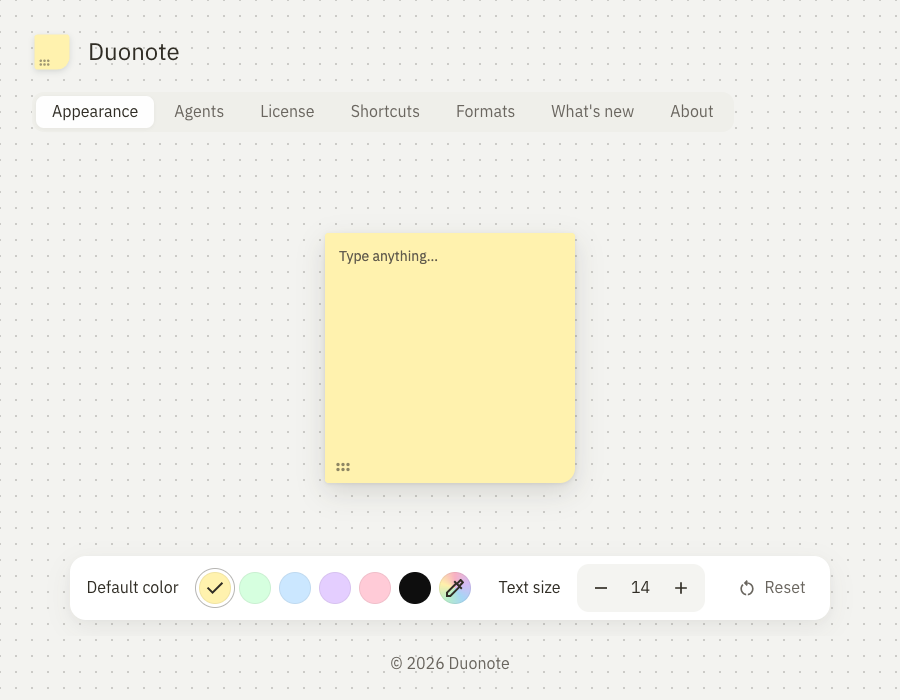
Change a note’s color from its menu. Drag its dotted handle to move it, or drag an edge or corner to resize it. In Settings → Appearance, choose the default color for new notes and the text size for all notes, including existing ones.